
How to Login to the Hik-Connect App
Imagine getting a notification that something’s moving near your front door, but when you try to check the live camera feed on your phone, you’re locked out. Frustrating, right? That tiny moment of panic is exactly why knowing how to login to the Hik-Connect app is so important. Don’t worry, by the end of this article, you’ll not only know how to log in—you’ll understand exactly what to do from the start, step by step.


What is the Hik-Connect App and Why You Need It
Before we jump into the login steps, let’s understand the basics.
Hik Connect or Hik-Connect is a mobile app that lets you see and control your Hikvision security cameras from anywhere. Whether you’re at home, at work, or on vacation, the app gives you eyes on your property at all times.
You can:
- Watch live video
- Play back recorded footage
- Get motion alerts
- Talk through two-way audio (if your camera supports it)
And yes, you can use Hik Connect for PC too, but the app is the easiest way to get started.
Let's Start from the Beginning: Installing the Hik-Connect App
Step 1: Download the Hik Connect App
Go to the App Store (for iOS users) or Google Play Store (for Android users). Type “Hik Connect app” in the search bar and download it.
Search term tip: Use “hik connect download” if you’re Googling this instead of searching in the app store directly.
How to Register a New Account (If You Haven’t Already)
If you’re opening the app for the first time, you’ll need to create an account. Here’s how:
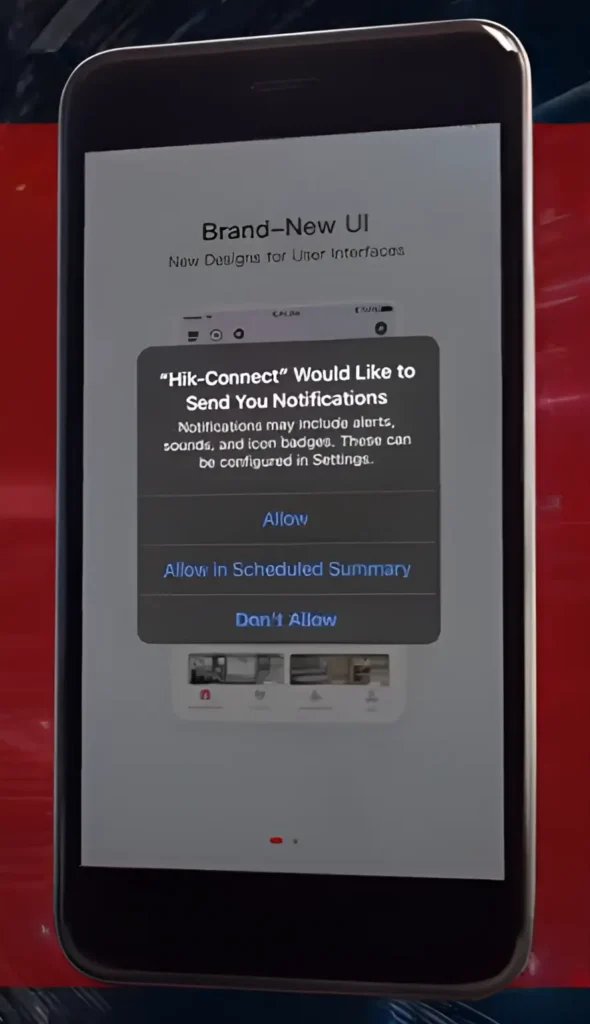
Step 2: Open the App and Give Permissions
Open the Hik-Connect app. It will ask for a few permissions. Tap “Allow” on all of them so the app can work properly.

Step 3: Tap "Start Now"
Swipe right on the welcome screens until you see the “Start Now” button. Tap it.

Step 4: Agree to Terms and Select Your Country
Before registering, you’ll need to accept the terms of service and pick your country from the list.
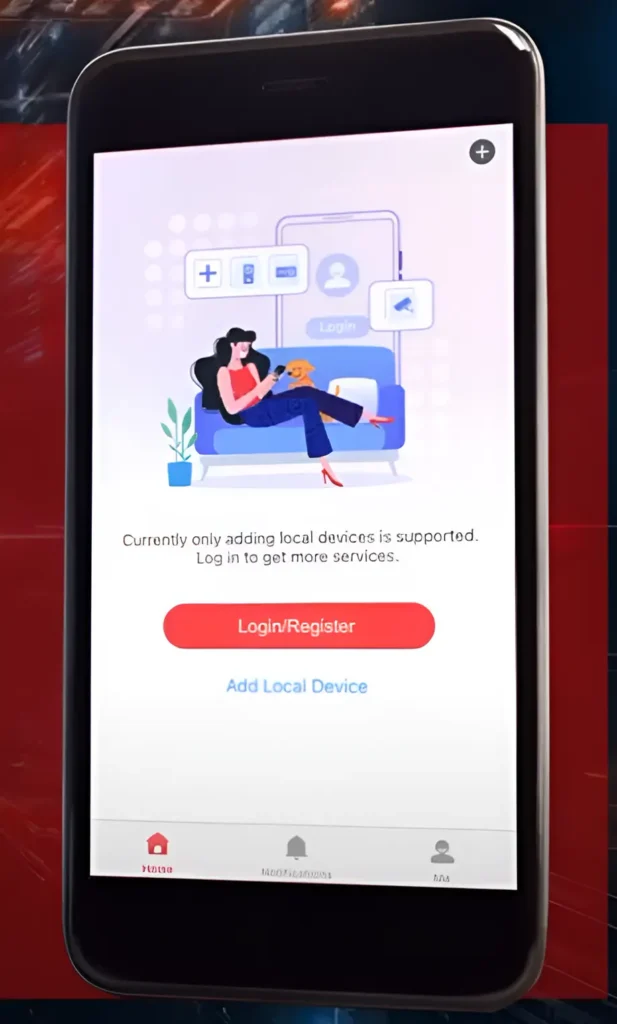
Step 5: Tap on "Login/Register"
Now, tap “Login/Register” to start creating your account
Enter your email address and create a strong password (8-16 characters) that includes:
- Uppercase letters (like A, B, C)
- Lowercase letters (like a, b, c)
- Numbers (like 1, 2, 3)
- Special characters (like !, @, #)

Step 6: Tap on "Get Security Code"
complete the Captcha Puzzle and Type the code they sent you to your email inbox

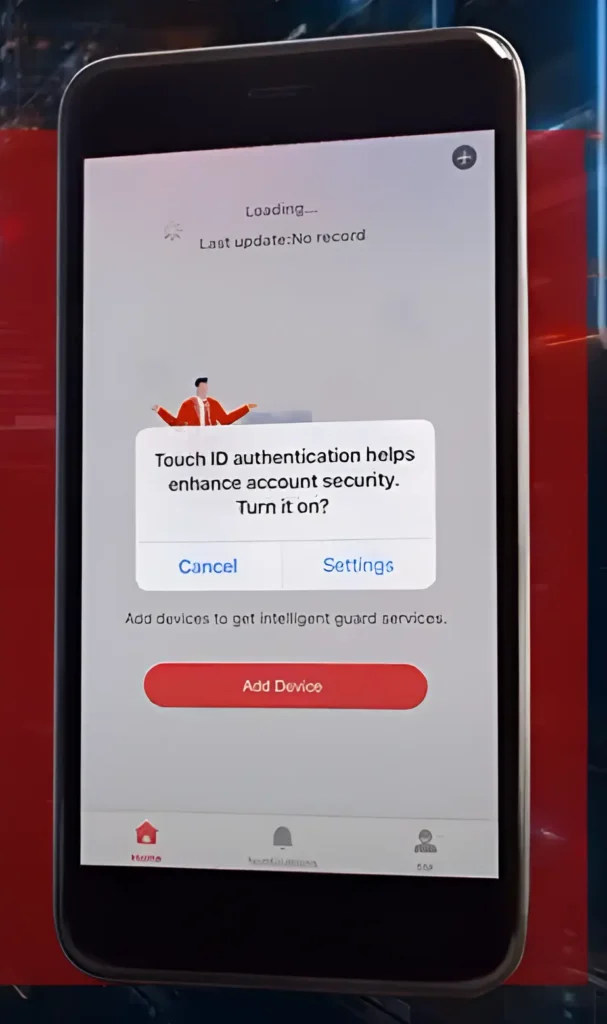
(Optional): Set Up Biometric Login
You can enable Touch ID or Face ID here. This makes logging in faster later on.
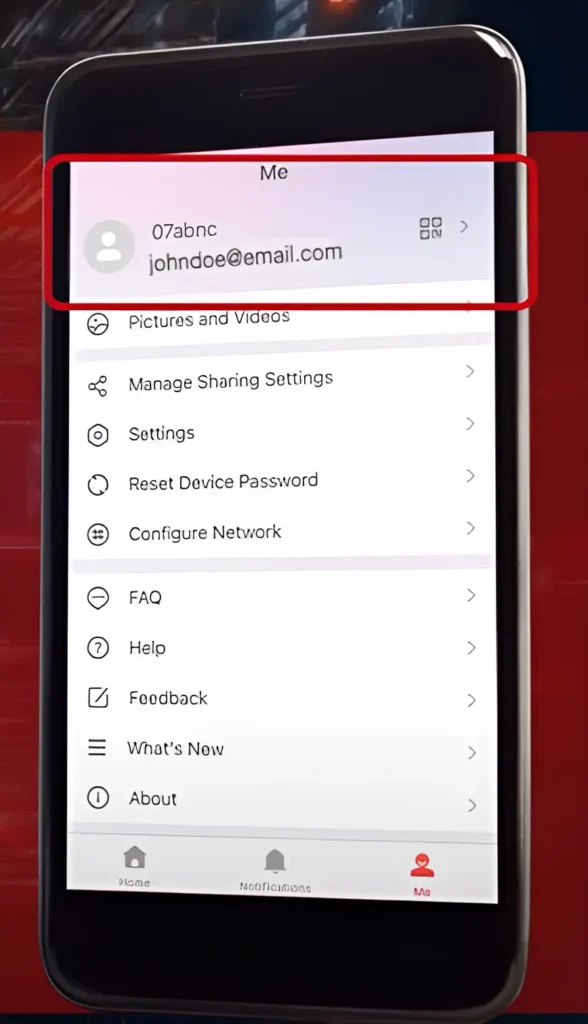
Step 7: go to the "Me"
Last but not least, go to the “Me” Tab and send us your username to allow us to set up your security camera system
🎥 Watch the Video Guide
If you’d rather watch than read, we’ve created a short step-by-step video tutorial that walks you through the entire login process—from downloading the app to setting up your account and logging in. Perfect for visual learners.
The Final Step: How to Login to Hik Connect
Now that your account is ready, logging in is super easy.
- Open the Hik-Connect app
- Tap on “Login”
- Enter your email and password
- Tap “Login” again
That’s it! You’re in. If you set up Face ID or Touch ID, it may log you in automatically.
Pro Tip: Share Your Username to Finish Setup
After logging in, tap the “Me” tab at the bottom of the screen. You may be asked to share your username with your camera provider or installer. This step helps them connect your account to the actual security system in your home.
Can You Use Hik Connect for PC?
Yes, you can. There’s a desktop version for users who prefer checking cameras from their computer. You’ll need to go to the official Hikvision website and download the Windows client. But keep in mind that the mobile app is usually faster and easier to use.
Forgot Your Hik Connect Login Info?
No problem. On the login screen:
- Tap “Forgot Password?”
- Enter your email
- Get the reset code in your inbox
- Create a new password
You’ll be back in the app in less than 2 minutes.
Quick Troubleshooting if You Can’t Login
Here are a few things to check:
- Are you connected to Wi-Fi or mobile data?
- Is your app updated to the latest version?
- Did you type the right password? Try copy-pasting it from your notes.
- If you get locked out, wait a few minutes before trying again.
Still stuck? Uninstall and reinstall the app. That fixes most bugs.
Final Thoughts
Logging into Hik Connect doesn’t have to be confusing. Whether you’re a beginner or just need a refresher, this guide walks you through everything you need to know—from downloading the Hik-Connect app, registering your account, and finally logging in. And if you prefer to use Hik Connect for PC, that option is there too.
So next time you get that motion alert from your camera, you’ll be ready. No stress. No delays. Just tap and you’re connected.
👉 For direct access to official resources and the most updated tools, you can visit the Hik-Connect Portal or the Hikvision Official Website. These links take you straight to the source—no middlemen, no confusion.